Introduction
Customer reviews help build trust with shoppers and influence purchase decisions on your online store. This article explains how to enable and manage product reviews, configure automatic or manual review publishing, and moderate customer feedback. The review settings you choose determine how and when customer reviews appear on your storefront, directly impacting the shopping experience for your customers.
In this article, you’ll learn:
Configure Review Settings
Review settings allow you to control how customer reviews are displayed on your store.
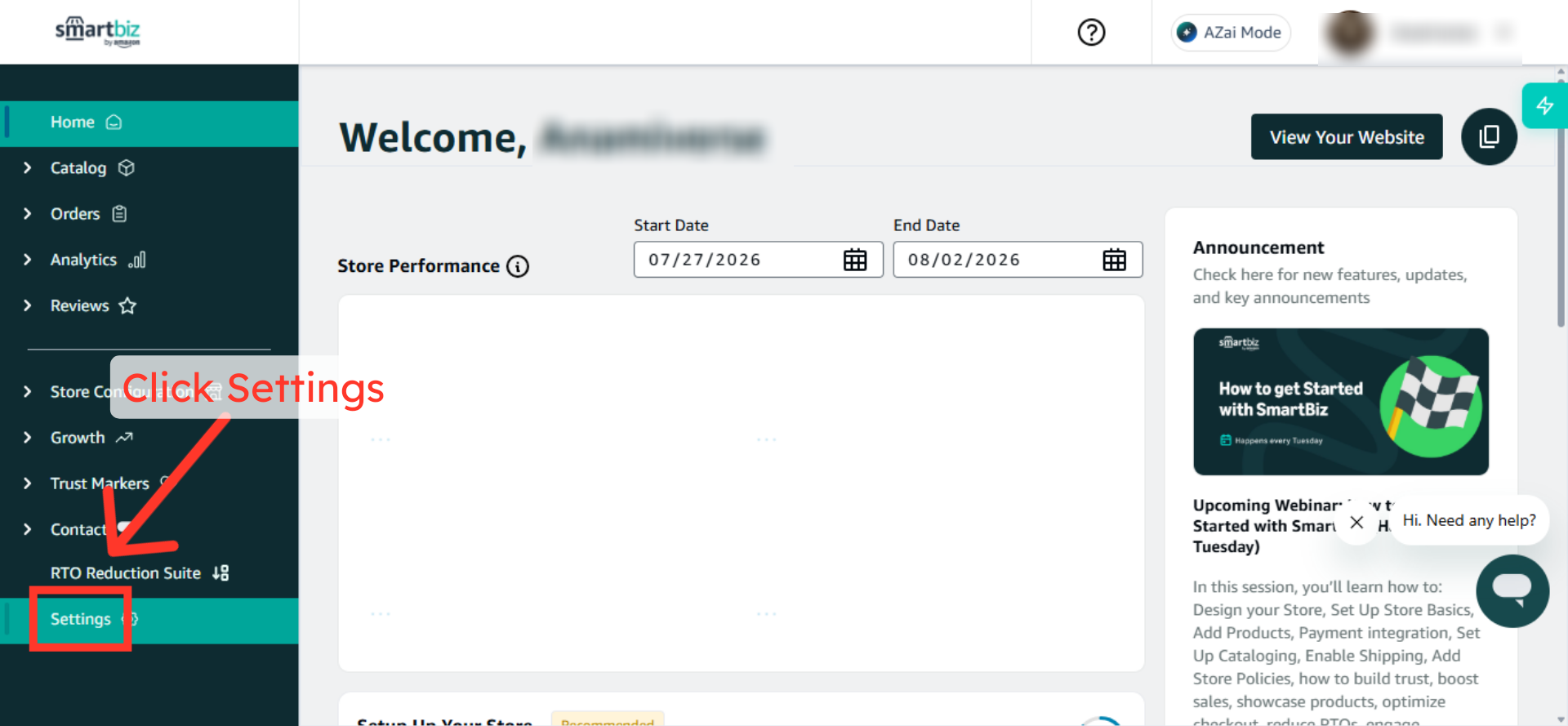
Step 1: Open Settings
- Sign in to your SmartBiz Seller Portal.
- From the left navigation menu, click Settings.
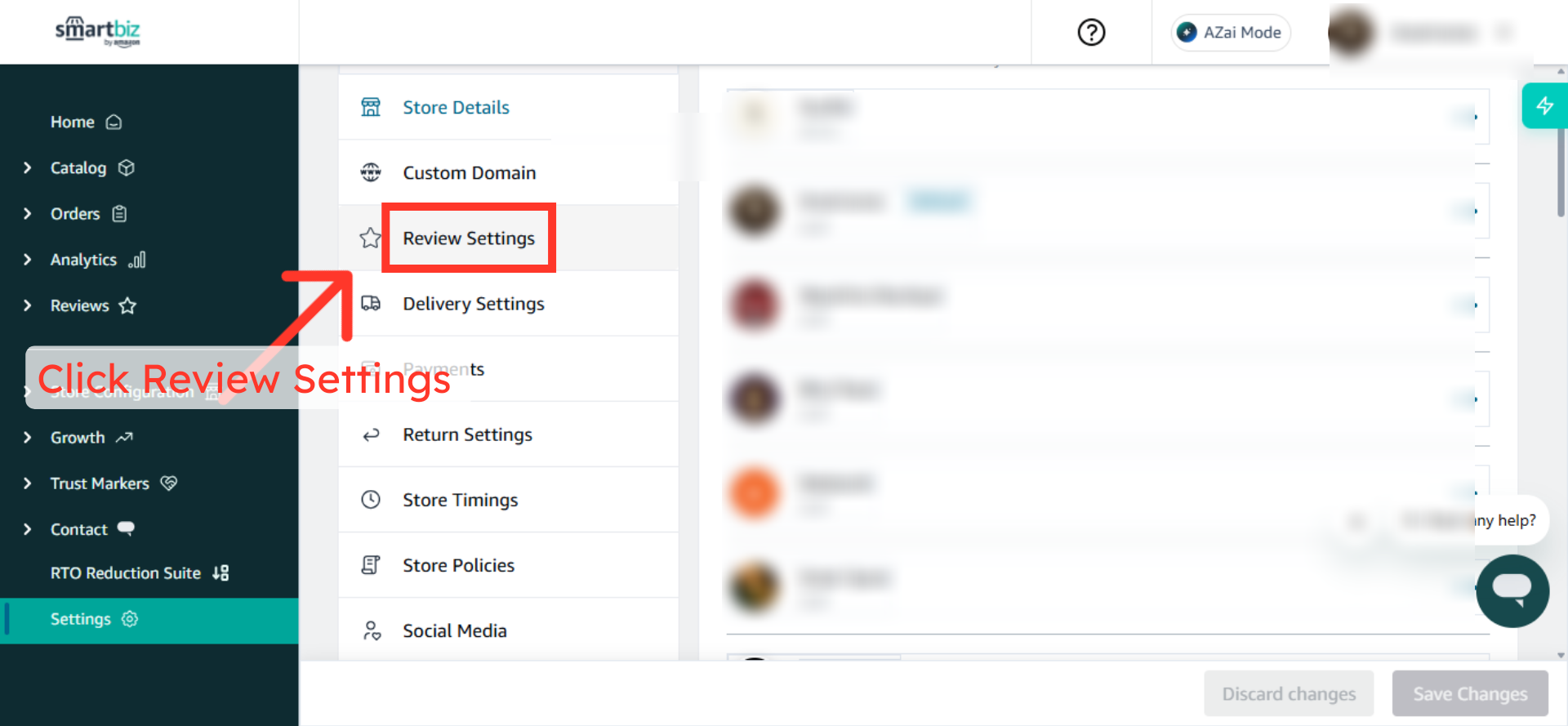
Step 2: Access Review Settings
- Click Review Settings.
- Select the review option you want to configure.
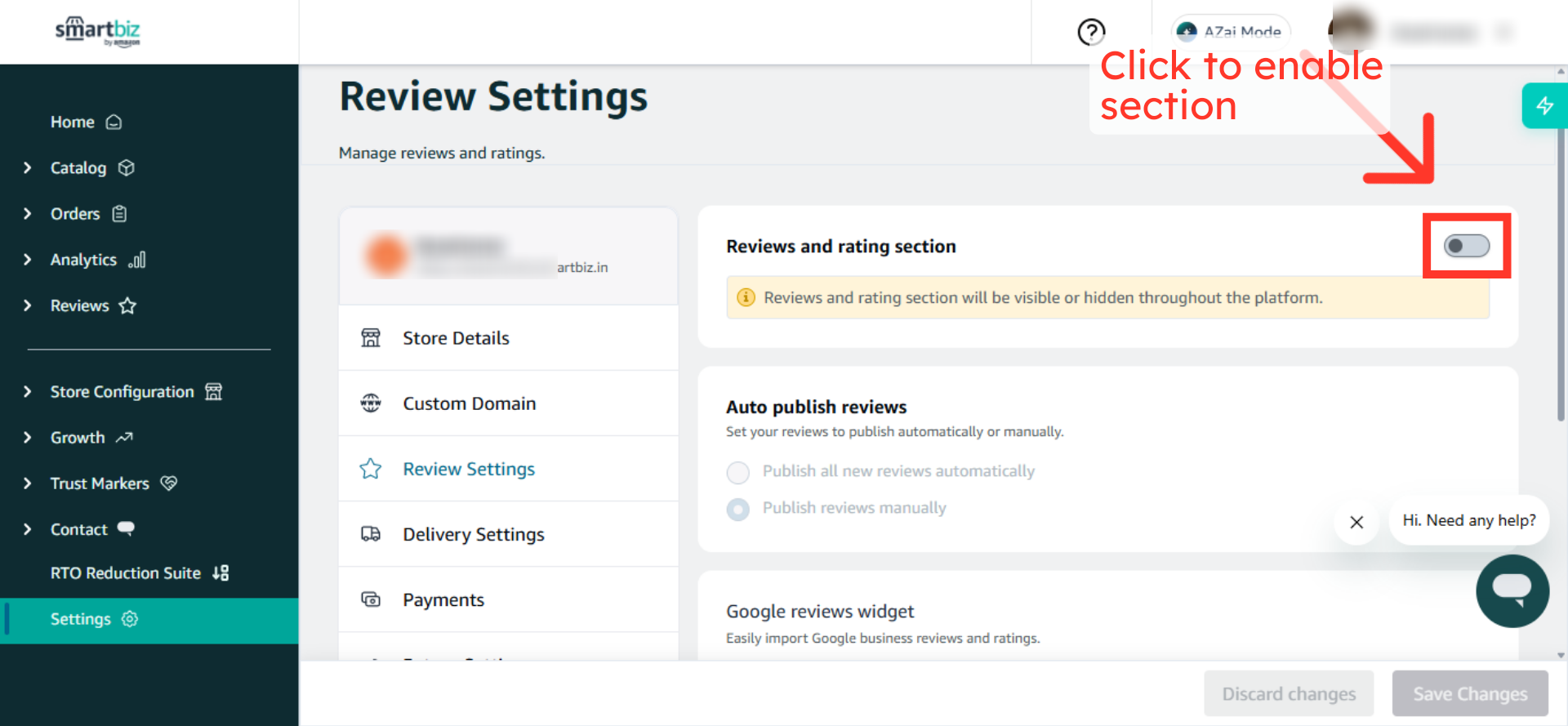
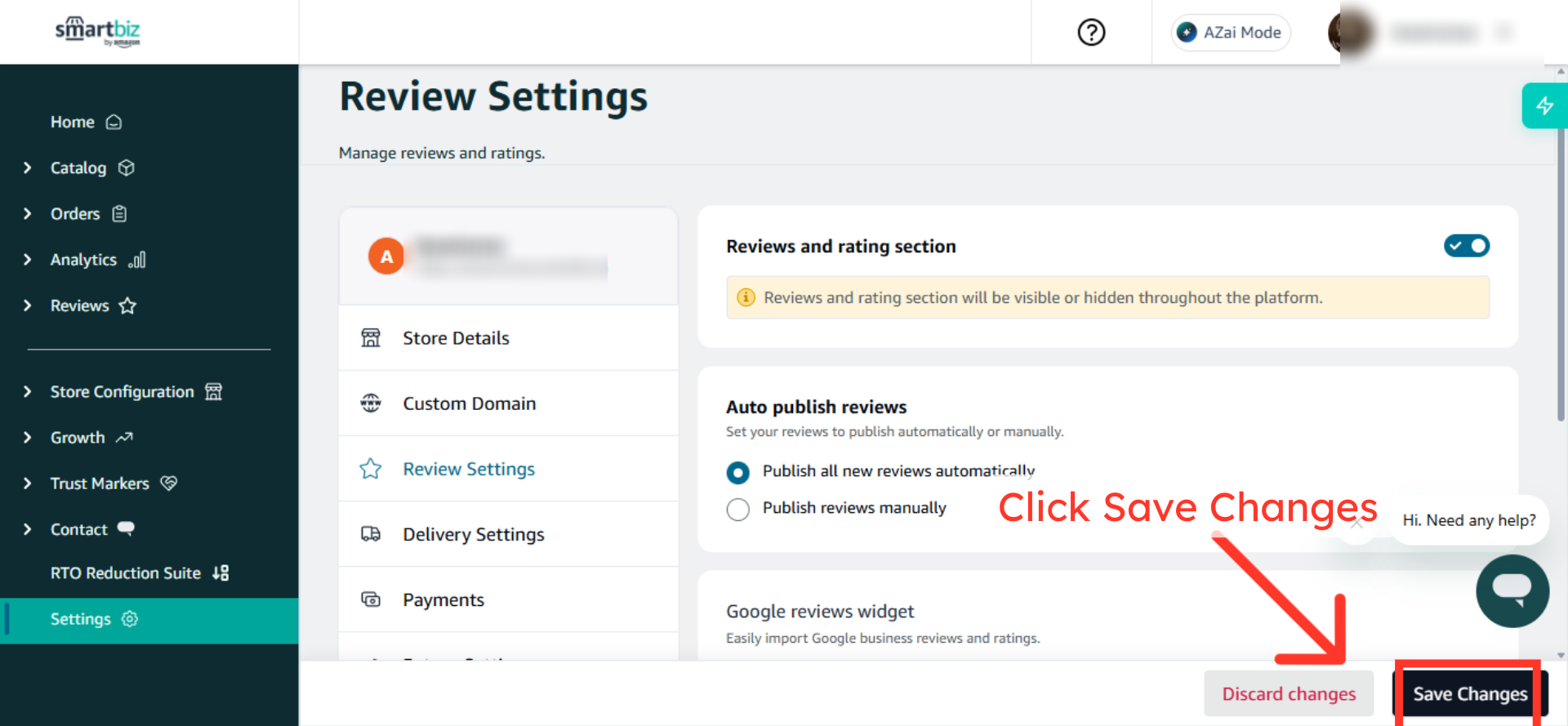
Step 3: Enable the Reviews and rating sections
Enable the Reviews and rating section so the customer can view it.
Step 4: Choose a Review Publishing Method
Under Auto publish reviews, choose one of the following options:
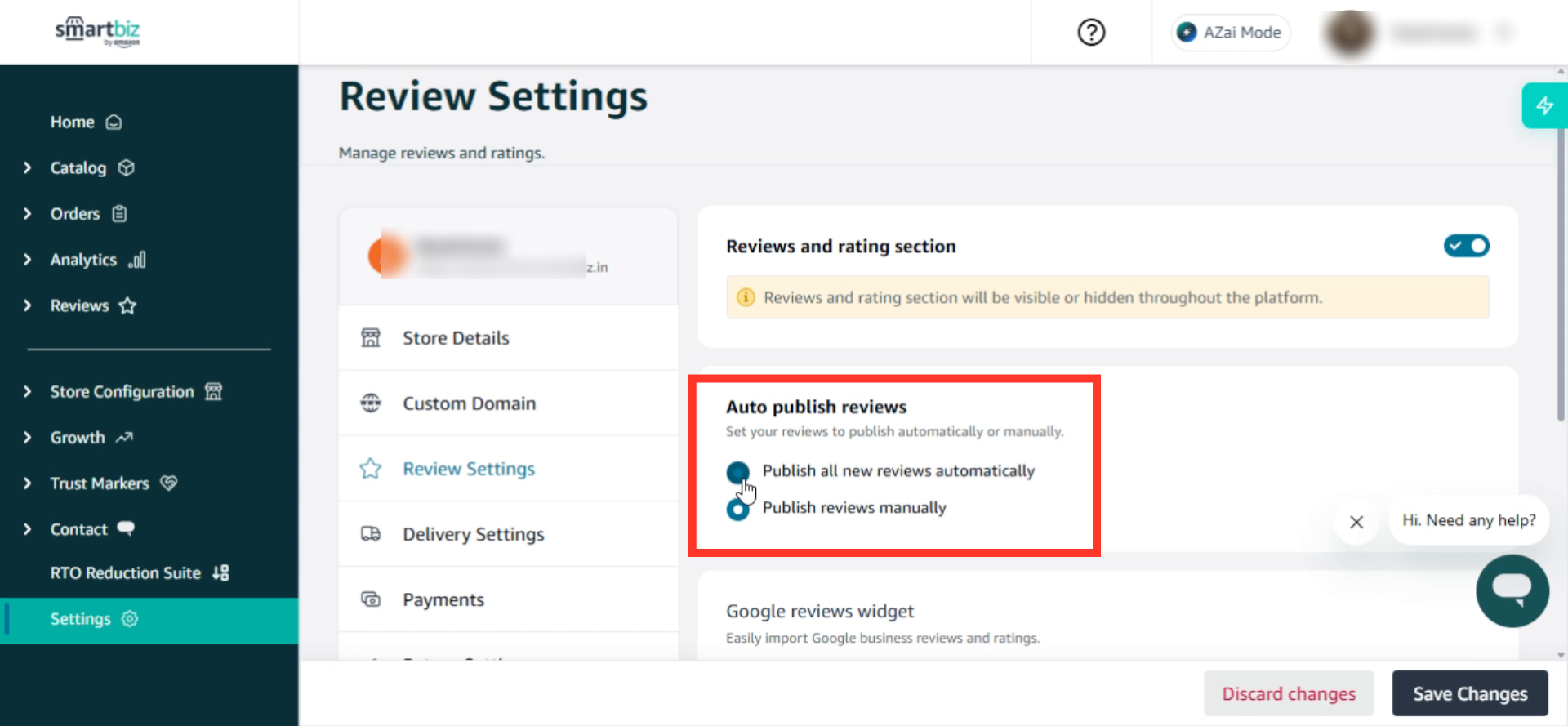
Publish all new reviews automatically
- Customer reviews are published immediately after submission.
- No manual review or approval is required.
- Reviews become visible on product pages as soon as customers submit them.
Publish reviews manually
- Reviews remain hidden until you approve them.
- You can review customer feedback before it appears on your storefront.
- This provides greater control over what is displayed to shoppers.
Step 4: Save Your Changes
- Click Save Changes.
- Your review preferences will be applied across your store.
Manage Customer Reviews
Once reviews are enabled, you can monitor and moderate customer feedback from the Reviews section.
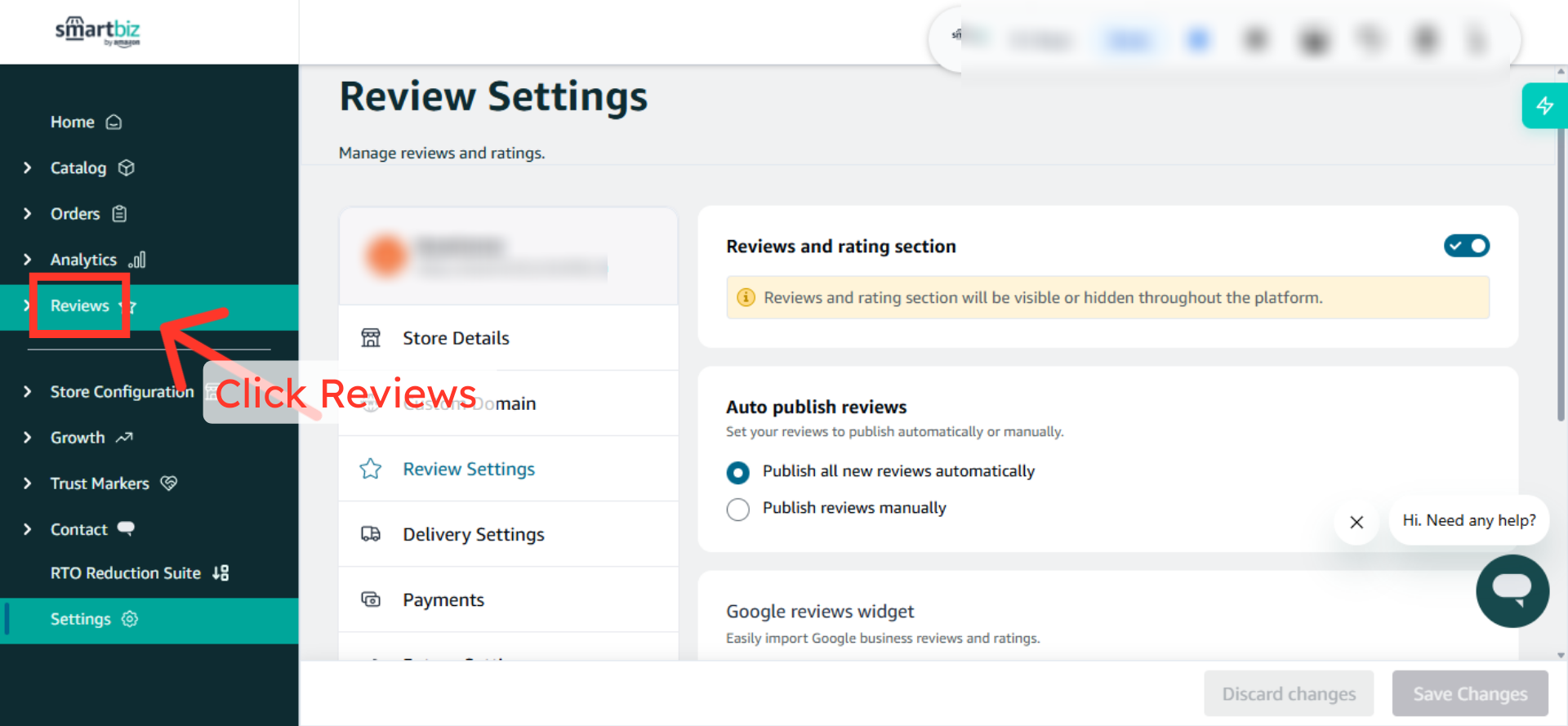
Step 1: Open the Reviews Section
- Click Reviews from the Seller Portal.
- View all customer ratings and feedback submitted for your products.
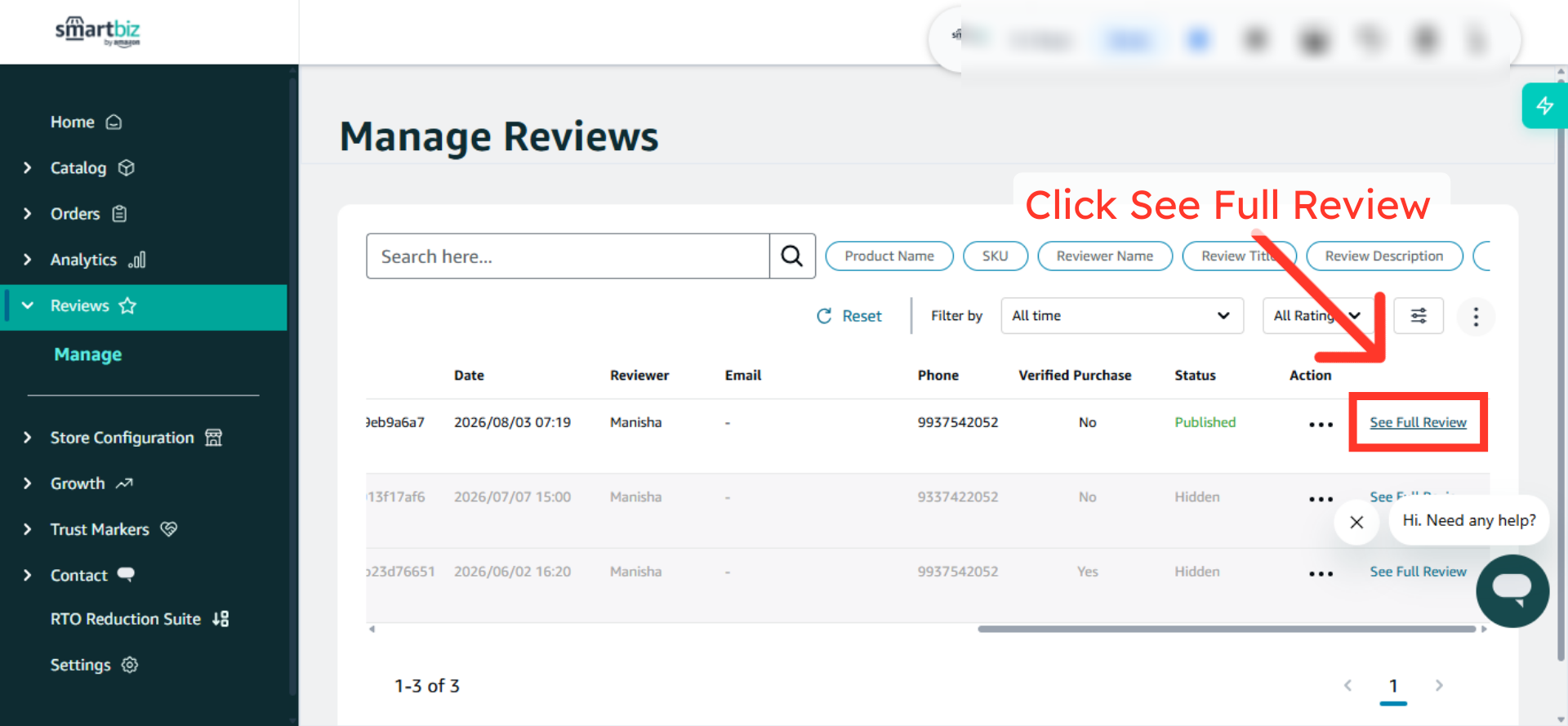
Step 2: View Review Details
Click See Full Review to read the customer's complete feedback.
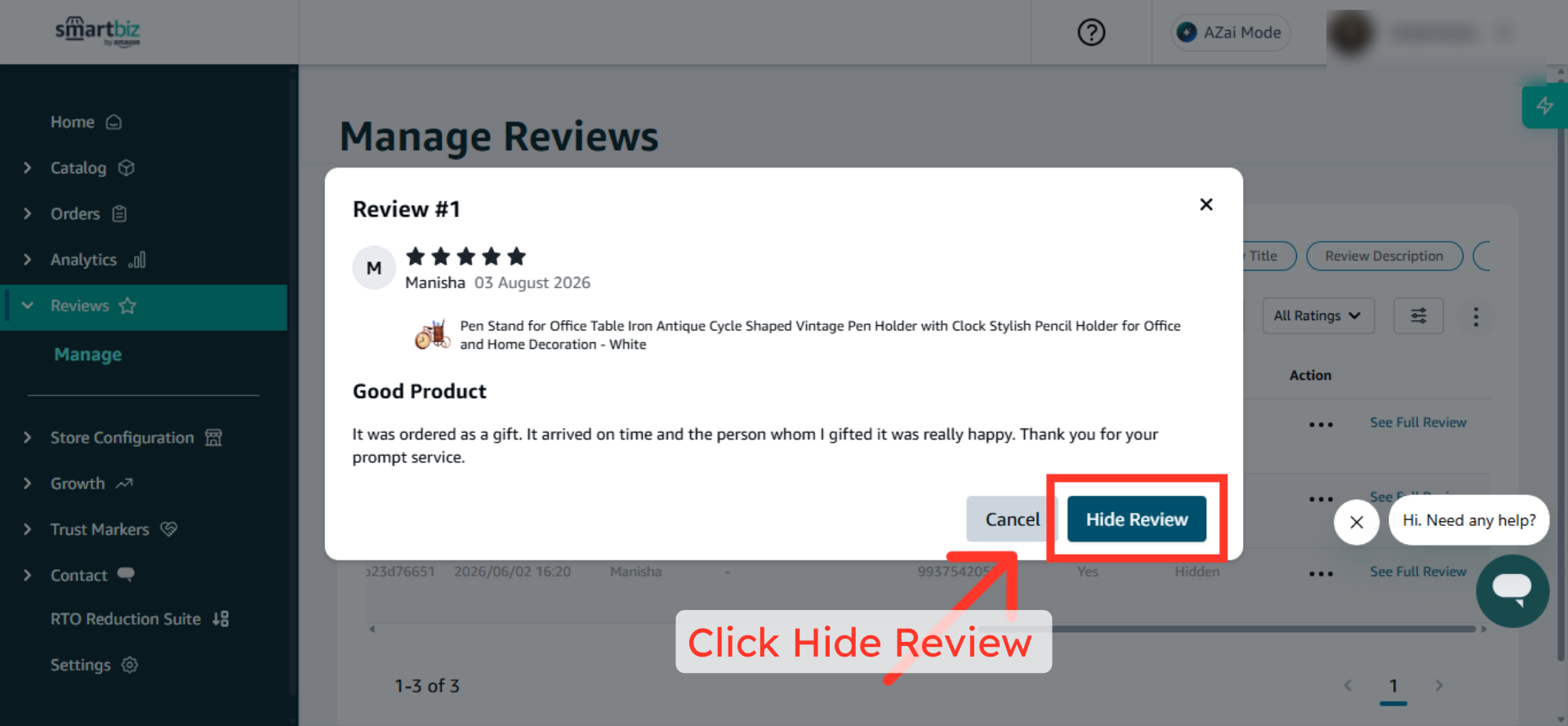
Step 4: Hide a Review
To remove a review from public view:
- Open the review.
- Click Hide Review.
The review will no longer be visible on your storefront, but it will remain available for management within the Seller Portal.
Step 5: Publish a Review
To make a review visible to customers:
- Open the review.
- Click Publish Review.
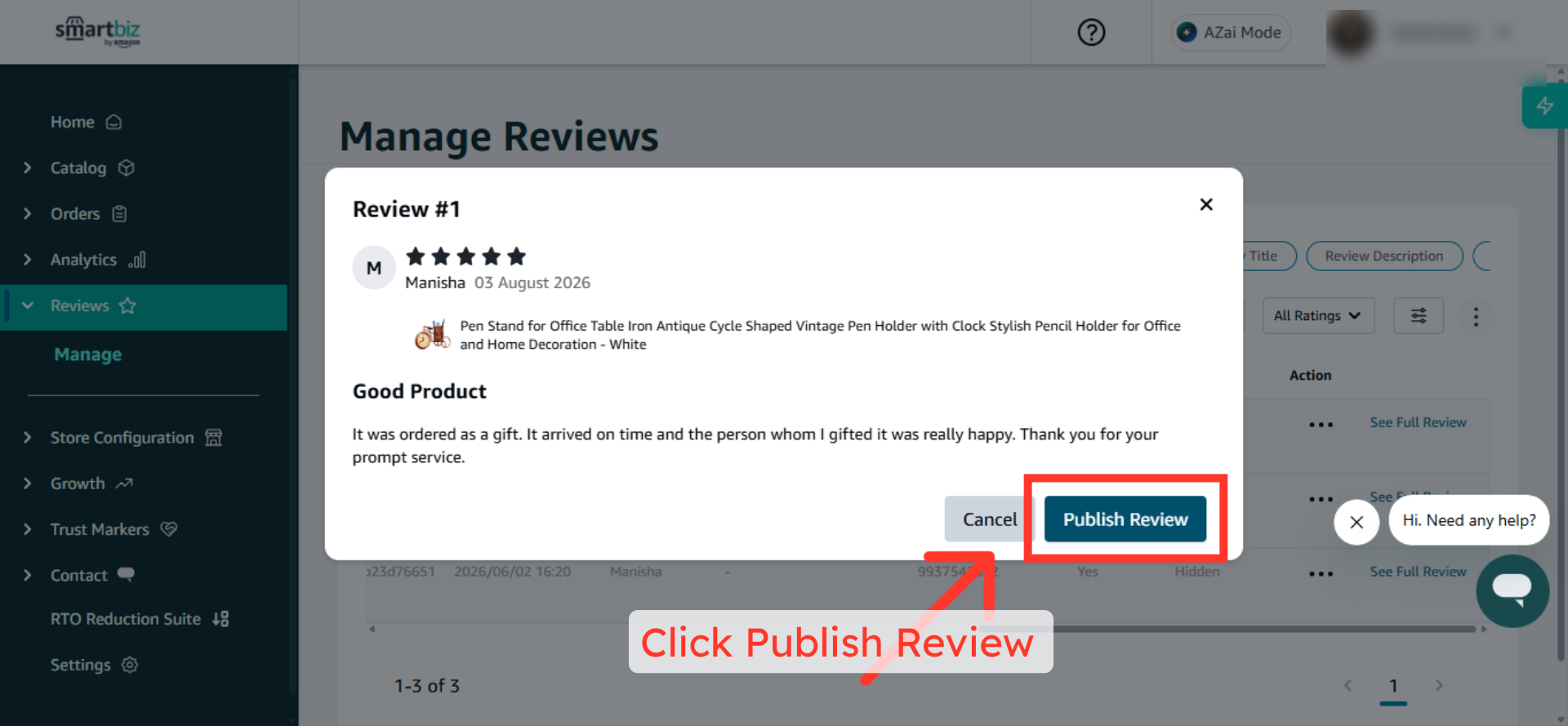
Note: If Publish all new reviews automatically is enabled, newly submitted reviews will appear on the storefront without manual approval.
Step 6: Use Quick Actions
For faster review management:
- Click the three-dot menu (...) beside a review.
- Choose one of the available actions:
- Publish review
- Hide review
- Delete review
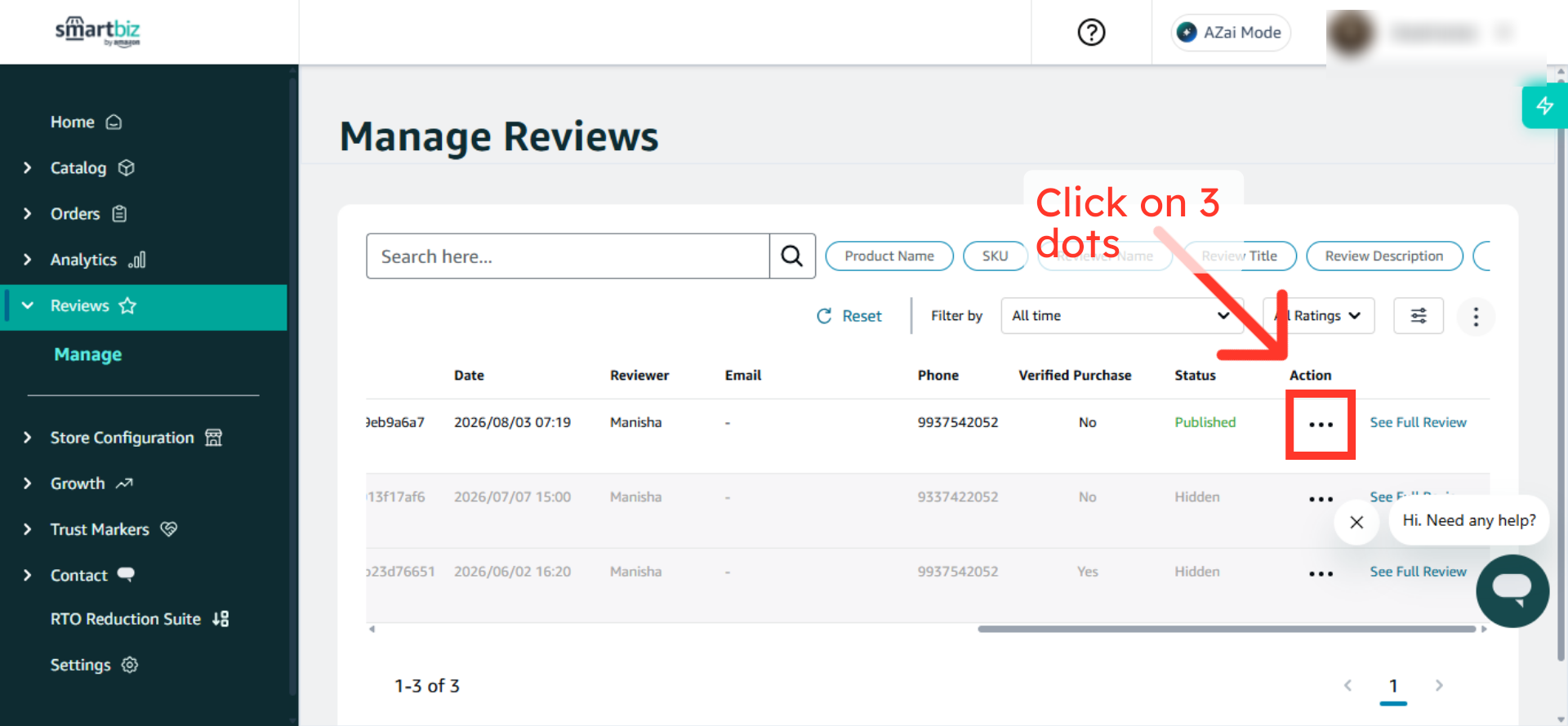
Step 7: Delete a Review
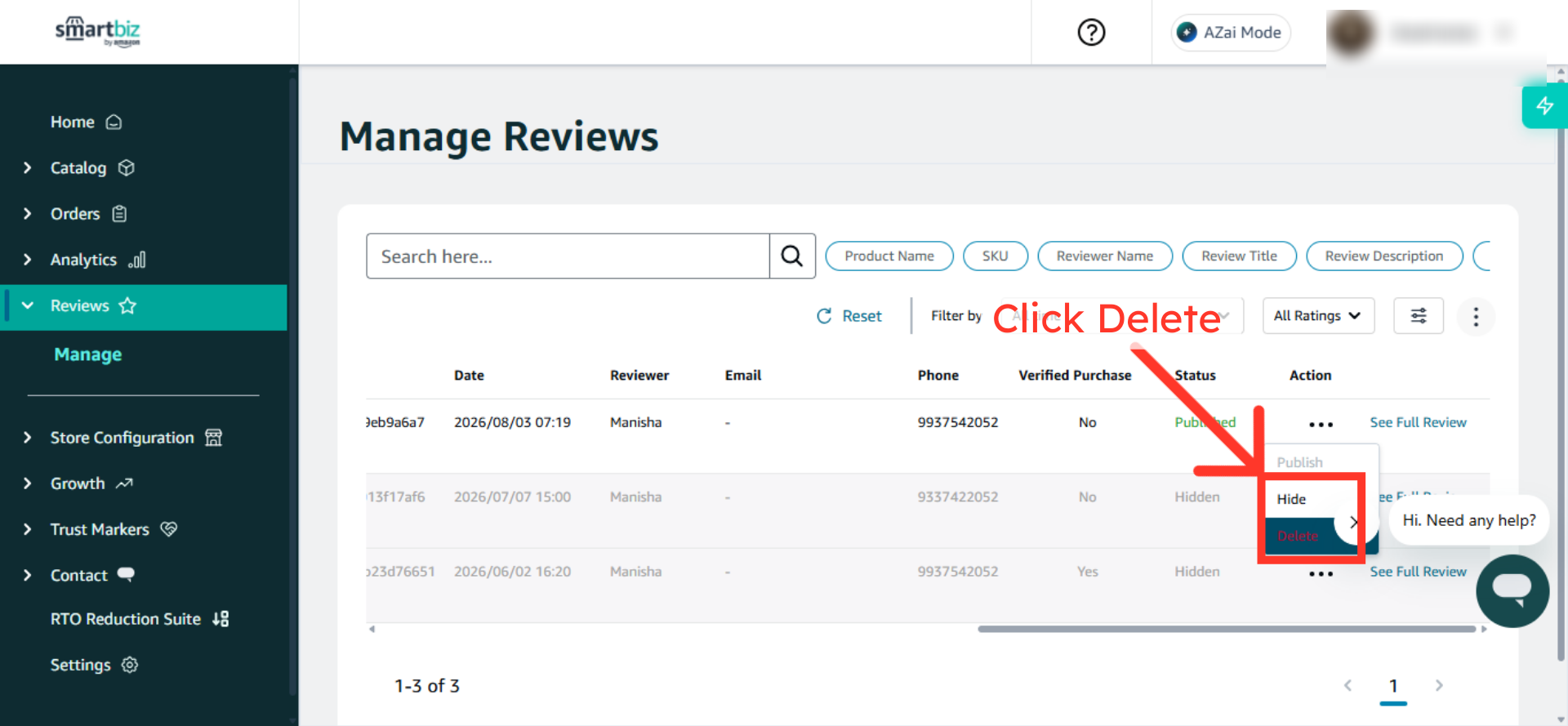
To permanently remove a review:
- Select Delete from the review options menu.
- Click Delete Review to confirm.
Important: Deleted reviews cannot be recovered.
Next Steps
After configuring your review preferences:
- Regularly monitor customer feedback in the Reviews section.
- Publish helpful reviews that provide value to shoppers.
- Address recurring customer concerns by updating product information or improving the customer experience.
- Use customer feedback to identify opportunities for product and service improvements.
FAQs
1. Can I automatically publish customer reviews?
Yes. Enable Publish all new reviews automatically in Review Settings to display reviews immediately after submission.
2. Can I review feedback before it appears on my storefront?
Yes. Select Publish reviews manually to approve reviews individually before they become visible to customers.
3. What happens when I hide a review?
The review is removed from public view on your storefront but remains available for management within the Seller Portal.
4. Can I restore a hidden review?
Yes. You can publish a hidden review again from the review details page or the quick actions menu.
5. What happens when I delete a review?
Deleting a review permanently removes it from the system and it cannot be recovered.
6. Where can I see all customer reviews?
You can access all customer feedback from the Reviews section in the SmartBiz Seller Portal.